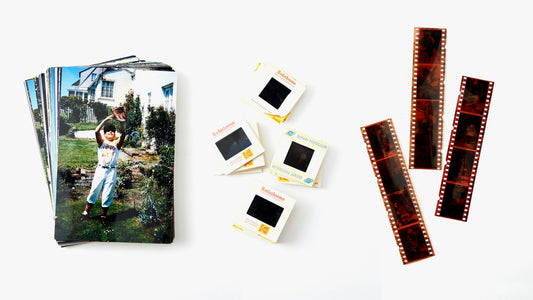
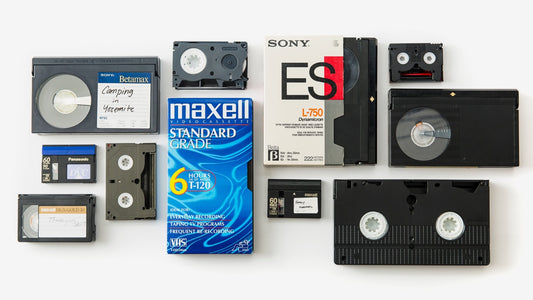
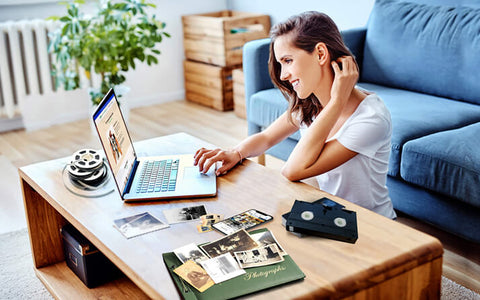
That stack of CDs sitting in your closet holds more than just music; it holds memories. From the first album you bought with your own money to the carefully crafted mixtapes from college, each disc is a time capsule. But let's be honest, when was the last time you actually played one? Modern cars and laptops don't even have CD players anymore. This guide is here to help you bring those memories into the present. We’ll walk you through every step you need to transfer CDs to a USB drive, making your entire collection portable and playable anywhere. It’s a simple project that lets you enjoy your favorite music all over again.
Key Takeaways
- Gather Your Tools Before You Start: Make the transfer process seamless by having three key items ready: an external CD/DVD drive if your computer lacks one, a USB with enough storage, and your computer’s built-in music software.
- Pick the Right Audio Format for Your Needs: Choose MP3 for the best compatibility across devices like car stereos and smart TVs. If you prioritize perfect sound quality for a high-end system, use a lossless format like WAV or FLAC.
- Know When to Rip vs. Copy: For standard music CDs, you'll need to "rip" the tracks using software like Apple Music or Windows Media Player. For data discs with photos or documents, you can simply copy and paste the files directly to your USB.
Get Ready: What You'll Need to Transfer CDs to a USB
Transferring your beloved CD collection to a USB drive is a fantastic way to preserve your music and make it portable for your car or modern sound systems. It’s a satisfying project that puts your favorite albums back into rotation. Before you start, gathering a few key items will make the entire process much smoother. Think of it as setting up your workspace before you begin cooking—it ensures everything goes off without a hitch. You'll need the right hardware to read your discs, software to copy the music, and a USB drive to store it all.
Getting these three things in order first means you can move from disc to digital seamlessly. It’s a straightforward process, and having everything you need on hand is the first step to success. This guide will walk you through exactly what to grab so you can feel confident from the start. While this process works great for music, remember that other media like home movies on DVDs or digital files on data discs can also be preserved. For now, let's focus on your music and get your gear ready for the transfer.
The Right Hardware for the Job
First things first, you need a way for your computer to read your CDs. It sounds simple, but many modern laptops, like the MacBook Air, don't come with a built-in CD or DVD drive anymore. If your computer is missing a disc slot, don't worry. You can easily find an external USB CD/DVD player online or at an electronics store. This device plugs right into your computer's USB port, allowing it to read your CDs just like the old days. It’s a small investment that opens the door to digitizing all your physical media, making it an essential first step for this project.
Software Options for Ripping CDs
Once your computer can read the CD, you'll need software to "rip" the music. Ripping is just a term for copying the audio tracks from the CD and converting them into digital files on your computer. The good news is that your computer likely already has what you need. Windows computers come with Windows Media Player, and Macs have the Music app (formerly iTunes). These programs are designed to handle this exact task. They can read your CDs, convert the songs into common formats like MP3, and save them neatly into your computer's music folder, all without you needing to download anything extra.
How to Pick the Perfect USB Drive
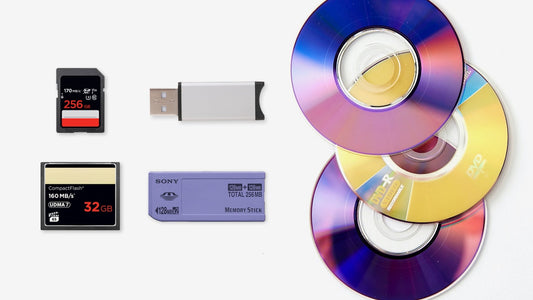
Finally, you need a place to store your newly digitized music. A USB flash drive is the perfect tool for this. They’re small, durable, and work with almost any device, from your computer to your car stereo. When choosing one, think about capacity. A single album in MP3 format takes up about 50-100 MB, so a 16 GB drive can hold hundreds of albums. It’s also a good idea to make sure the drive is formatted with a common file system like FAT32 or exFAT. This ensures it will be compatible with various devices you might want to play your music on.
Your Step-by-Step Guide to Transferring Music CDs to a USB
Ready to get those beloved albums off your dusty CDs and onto a portable USB drive? The process is pretty straightforward, but the exact steps depend on your computer. We’ll walk through the most common methods below. If you find you have a whole spindle of discs to get through and would rather have an expert handle it, our Digital Media Transfer service can take care of everything for you. But if you’re ready to DIY, let’s get started.
For Windows
If you're using a Windows PC, you can often copy your music files directly. This method works best for data CDs that already have files like MP3s on them, but it's a great starting point for any disc.
First, insert your CD into the computer’s disc drive and plug your USB drive into an open USB port. Your computer should recognize both. Open up File Explorer by pressing the Windows Key + E on your keyboard. In the navigation pane on the left, find your CD drive under "This PC." Click on it to view all the files. To select everything, press Ctrl + A. If you only want specific songs, hold down the Ctrl key and click each file you want to copy. Once they’re selected, right-click, choose "Send to," and select your USB drive from the list.
For Mac
Most modern Macs don't have a built-in CD drive, so you'll likely need an external USB CD/DVD player to get started. Once you have one connected, the process is managed through the Apple Music app.
Open the Music app and insert your CD. The app should ask if you want to import the songs. Before you say yes, it’s a good idea to check your settings. Go to Music > Preferences, click the "Files" tab, and then "Import Settings." Here, you can choose the audio format. MP3 is a safe bet for compatibility with car stereos and other devices. After the songs are imported into your library, you can simply click and drag them from the Music app window directly onto your USB drive icon on the desktop.
Using Windows Media Player or iTunes
For standard audio CDs, simply copying the files might not work. You’ll need to "rip" the music, which means converting the tracks into digital files like MP3s. Windows Media Player and iTunes are perfect for this.
In iTunes (or the Apple Music app on newer systems), make sure to change your import settings first. Go to Edit > Preferences > General > Import Settings and change the "Import Using" option to MP3 Encoder. This is a key step, as many devices can't play Apple's default AAC format.
In Windows Media Player, after the program rips the CD, select the songs in your library. Right-click them and choose "Open file location." This will take you straight to the folder where the new MP3s are saved. From there, you can right-click the highlighted files, select "Send to," and choose your USB drive.
What About Data CDs or Mixed-Content Discs?
Not every CD in your collection is a music album. You might have data discs filled with old photos, home videos, or important documents you burned for safekeeping. Some CDs, often called "enhanced CDs," even contain a mix of music tracks and other files. The good news is that you can transfer all of this content to a USB drive, and the process is often simpler than ripping music. It’s mostly a matter of dragging and dropping your files to their new home.
How to Transfer Data CDs to a USB
If your CD is filled with files like photos or documents, you can move them without any special software. Think of it as a simple copy-and-paste task.
Start by inserting the CD into your computer and plugging your USB drive into an open port. Open your computer’s file manager (File Explorer on Windows or Finder on Mac) and locate your CD drive. Open it to see all the files, select the ones you want to copy, then right-click and choose “Send to” your USB drive. If you have a large collection of discs, our digital media transfer service can handle the entire process for you.
Handling CDs with Both Music and Data
When you have a disc with both music and data, you can save everything. You’ll just need to handle the two types of content separately. Use the ripping process described earlier for the music tracks, and then simply copy the data files (like photos or videos) directly to your USB drive.
Here’s a pro tip: copy all the files to a temporary folder on your computer first. This allows you to sort the music and photos into separate folders before moving them to the USB. It’s a small step that helps keep your new digital archive organized from the very beginning, especially for a large photo transfer.
Choosing the Best Audio Format for Your Music
When you transfer music from a CD to a USB, the software will ask you to choose an audio format. Think of this as picking the right container for your music. Your choice will affect the sound quality, the amount of space the files take up on your USB drive, and which devices can play them. There’s no single "best" format—it all comes down to what’s most important to you.
Are you an audiophile who wants to preserve every single detail of the original recording? Or do you just want to fit your entire CD collection on one small USB stick to play in your car? The main difference between formats is compression. Uncompressed formats are exact copies of the CD audio, which means they sound perfect but create very large files. Compressed formats use clever tricks to shrink the file size. Some do this without losing any quality (lossless), while others remove tiny bits of sound you likely won't miss to make the files even smaller (lossy). Let's walk through the most common options so you can pick the perfect one for your needs.
MP3: The Universal Choice for Compatibility
If your main goal is to play your music on as many devices as possible—your car stereo, a smart TV, your phone, or a friend's computer—MP3 is the way to go. It’s the most widely recognized audio format on the planet. MP3s use "lossy" compression, which means they make files much smaller by removing parts of the sound that are hard for the human ear to hear. For most people listening on standard headphones or speakers, the quality is fantastic. You can easily save music as MP3 files in programs like Windows Media Player, making it a simple and reliable choice for everyday listening.
WAV: For the Highest Quality Sound
For those who want a perfect, bit-for-bit copy of the original CD, WAV is the format to choose. WAV files are uncompressed, meaning absolutely no audio information is lost in the transfer. This is the format for you if you have a high-end sound system and want to hear your music in its purest form. The trade-off? File size. WAV files are massive and will take up significantly more space on your USB drive. A single album can easily take up hundreds of megabytes. This format is ideal for archiving your most cherished albums or for anyone who wants to prioritize sound quality above all else.
Other Options: FLAC and AAC
If you find yourself stuck between the quality of WAV and the convenience of MP3, you’re in luck. FLAC (Free Lossless Audio Codec) offers the best of both worlds. It uses lossless compression, which shrinks file sizes by about 30-50% compared to WAV without sacrificing a single bit of audio quality. It’s a fantastic way of keeping sound quality high while making your collection more manageable.
Another great option is AAC (Advanced Audio Coding). This is the format often used by Apple for iTunes and Apple Music. It’s a bit more efficient than MP3, offering slightly better sound quality at the same file size. If you primarily use Apple products, AAC is an excellent choice that fits perfectly within the Apple ecosystem.
How to Fix Common CD to USB Transfer Problems
Even with a clear plan, you might hit a small snag when transferring your CDs. It happens to all of us! The good news is that most of these issues are simple to solve. Whether your computer is refusing to recognize the disc or the files aren’t playing correctly on your new device, a few quick adjustments can get you back on track. Think of this as the final checkpoint before you can enjoy your newly digitized music collection. We’ll walk through the most common problems and their straightforward solutions, so you can finish your project with confidence.
When Your Computer Won't Read the CD
The most common reason a computer won’t read a CD is that many modern laptops and desktops don’t have a built-in disc drive. If that’s the case for you, the fix is simple: you’ll need an external CD/DVD drive that connects to your computer via a USB port. If you have a drive but it’s still not working, check the disc itself. Give it a gentle wipe with a soft, lint-free cloth, cleaning from the center outward. Scratches or dust can prevent the drive’s laser from reading the data correctly. Trying the disc in a different computer can also help you figure out if the problem is with the CD or the drive.
Running Out of Space on Your USB
Audio files, especially high-quality ones, can take up more space than you might think. Before you start, it’s a good idea to check the total size of the files on your CD and compare it to the available space on your USB drive. If you run out of room mid-transfer, you’ll need a larger USB drive to complete the job. Another common issue is finding that some songs are missing after the transfer. This often happens when not all files were selected before copying. Simply go back and double-check that you’ve highlighted every track you want to move over.
When Files Won't Play on Another Device
You’ve successfully transferred your music, but when you plug the USB into your car stereo or smart TV, nothing plays. This is almost always a file format issue. Some programs, like Windows Media Player, may default to saving audio in a WMA format, which isn’t universally compatible. The best solution is to change the settings in your ripping software to save the files as MP3s. MP3 is the most widely supported audio format and will play on nearly any device. You can usually find this option in the "Rip Settings" or "Preferences" menu of your software.
Solving Transfer Speed and Quality Issues
Watching a progress bar inch along can be frustrating. Transferring large, high-quality files takes time, and the speed depends on both your computer’s processor and the read/write speeds of your CD drive and USB stick. To help things along, close any other programs you have running to free up your computer’s resources. If you’re digitizing a large collection of discs, this process can feel overwhelming. For projects involving various types of media or if you simply want perfect quality without the hassle, a professional digital media transfer service can handle all the technical work for you.
Is It Legal to Copy Your CDs to a USB?
Navigating the rules around copying music can feel a bit murky, but it really comes down to one simple question: who is the copy for? Let’s break down what you need to know to make sure you’re staying on the right side of the law.
Understanding Personal and Fair Use
So, are you breaking the law by copying your own CDs to a USB? The short answer is… it’s complicated. Technically, copyright law gives the original creator the exclusive right to make copies. So, ripping a CD you bought isn't strictly legal. However, the practice of making a copy for your own personal use—like transferring your 90s rock collection to a flash drive for your car—is widely accepted. While there isn't a specific legal "right" to do this, you generally don't have to worry about legal trouble for simply making your music library more convenient for your own enjoyment.
A Note on Copyright and Sharing Your Files
Here’s where the line becomes very clear. Copying a CD for your personal playlist is one thing, but sharing those files with others is a definite no-go. When you purchase a CD, you're buying a license to listen to that music yourself. You don't own the copyright, so you can't legally distribute copies, whether you're selling them or giving them away to friends. The Recording Industry Association of America (RIAA) is very clear that unauthorized distribution is piracy. So, feel free to create backups and personal mixes, but keep those files for your ears only.
Organize Your New Digital Music Collection
Once you’ve transferred your music, the final step is getting everything organized. Taking a few minutes to create a clean, logical structure for your files will make your collection so much easier to enjoy. Think of it like arranging your physical CD collection on a shelf—a little order goes a long way. A well-organized digital library means you can find that one specific song you’re looking for in seconds, whether you’re in your car or on your computer.
This process involves two main parts: creating a sensible folder system and making sure all your track information and album art is correct. When you’re done, you’ll have a tidy, easy-to-browse collection that’s ready to play anywhere. It’s the finishing touch that makes all the effort of transferring your CDs feel worth it.
Creating a Smart File and Folder Structure
The best way to organize your music is to create a simple and consistent folder system. Before moving files to your USB drive, I recommend saving them to your computer’s hard drive first. This gives you a temporary workspace to sort everything without the slower speeds of a USB drive. A great system to use is creating a main folder for each artist, and then inside that, a subfolder for each album.
For example, a path might look like this: Music > Fleetwood Mac > Rumours > 01 - Second Hand News.mp3. This structure keeps everything neat and predictable. For compilation albums or soundtracks with multiple artists, you can create a separate folder called “Compilations” and then create a subfolder for each album title inside that.
How to Manage Album Art and Track Info
Have you ever noticed how your music player shows the album cover, song title, and artist name? That’s all thanks to metadata stored within the audio file itself. When you rip a CD using software like Windows Media Player or Apple Music, it usually finds and attaches this information automatically. However, it doesn’t always get it right, especially with older or less common CDs.
Before you transfer the files to your USB, take a moment to check them in your music software. You can typically right-click a song or album to edit its info and add missing album art. Using a universal format like MP3 helps ensure this information will display correctly on most devices. You can often change the settings in your media player to save music as MP3 files, which gives you the best compatibility for car stereos and other players.
When to Use a Professional CD Transfer Service
While transferring CDs yourself is definitely possible, it’s not always the most practical solution. If you’re short on time, dealing with a large collection of discs, or simply don’t have the right equipment, a professional service can be a lifesaver. Think about the value of your time and the importance of the memories stored on those discs. Sometimes, handing the project over to experts who do this every day is the best way to ensure your files are transferred safely and correctly, without the frustration of troubleshooting technical issues.
A professional service is also a great option if your CDs are showing signs of wear and tear. Scratched or damaged discs can be tricky to read with standard computer drives, but specialized equipment can often recover files that might otherwise be lost. If you’re looking to preserve precious family photos, videos, or important documents from old CDs, letting a professional handle the transfer gives you peace of mind that your memories are in good hands.
The Benefits of Professional Digitization
Let’s face it: CDs are becoming obsolete. Many new laptops don’t even come with a disc drive anymore, making it harder to access your files. Moving your memories to a modern format like a USB drive or the cloud ensures they’ll be accessible for years to come. USBs are more durable, portable, and compatible with a wide range of devices, from smart TVs to new computers.
Professional digitization isn’t just about moving files from one place to another; it’s about future-proofing your memories. A dedicated service ensures the transfer is done at the highest possible quality, so your photos, videos, and music don’t lose their clarity. Instead of spending a weekend figuring out software and formats, you can get everything professionally organized and ready to enjoy on the devices you use every day.
How YesVideo Can Help with Your Digital Media
We understand that the files on your CDs are more than just data—they’re irreplaceable memories. That’s why we’ve made our process simple and secure. You send us your discs, and our team of experts handles the entire transfer process by hand, right here in the USA. We take care of converting your files into a modern, easy-to-use digital format.
With our Digital Media Transfer service, you don’t have to worry about finding a working CD drive or dealing with complicated software. We consolidate your memories onto a USB, a DVD, or a private online account where you can view and share them with family and friends anytime. It’s the easiest way to bring your cherished moments from the past into the present.
Related Articles
- Cassette to Digital: Your Ultimate Conversion Guide – YesVideo
- How to Digitize Cassette Tapes: The Ultimate Guide – YesVideo
Frequently Asked Questions
What's the real difference between "ripping" a CD and just copying the files? Think of it this way: a standard music CD you buy in a store doesn't contain files like MP3s. The music is stored in a special audio format. "Ripping" is the process of using software to convert that audio into digital files (like MP3 or WAV) that your computer and other devices can understand and play. Simply copying the files only works for data CDs that already have files like photos or documents on them. For music albums, you'll always need to rip them.
Can I transfer a scratched CD? What if some songs won't copy? A few light scratches might not be a problem, and you can often fix them by gently wiping the disc with a soft, clean cloth from the center to the edge. However, deep scratches can cause the transfer to fail or create skips in the audio. If your ripping software gets stuck on a certain track, it's a sign the damage is too significant for a standard drive to read. In these cases, a professional service with specialized equipment often has a better chance of recovering the music.
How much music can I actually fit on a standard USB drive? This depends on the audio format you choose, but you can fit a surprising amount. If you're using the common MP3 format, a single album usually takes up around 80 MB. This means a small 16 GB USB drive can comfortably hold about 200 albums. If you opt for a higher-quality, uncompressed format like WAV, those file sizes will be much larger, and you'll be able to store significantly fewer albums on the same drive.
This process seems to work for music. Can I use the same steps for my home movies on DVDs? While the basic idea is similar, transferring video from DVDs is a bit more complex. DVDs have a different file structure and often include copy protection, even on home-recorded discs. You would need specific software designed for converting video, and the process can be more technical. For something as precious as home movies, using a dedicated service ensures the quality is preserved and the transfer is done correctly without any hassle.
Is it better to save the files to my computer first or directly to the USB drive? I always recommend saving the files to a folder on your computer's desktop first. This gives you a chance to organize everything, check that all the track names and album art are correct, and create your artist and album folders before moving the final, polished collection to your USB drive. It's a simple extra step that makes the final result much tidier and easier to browse later.